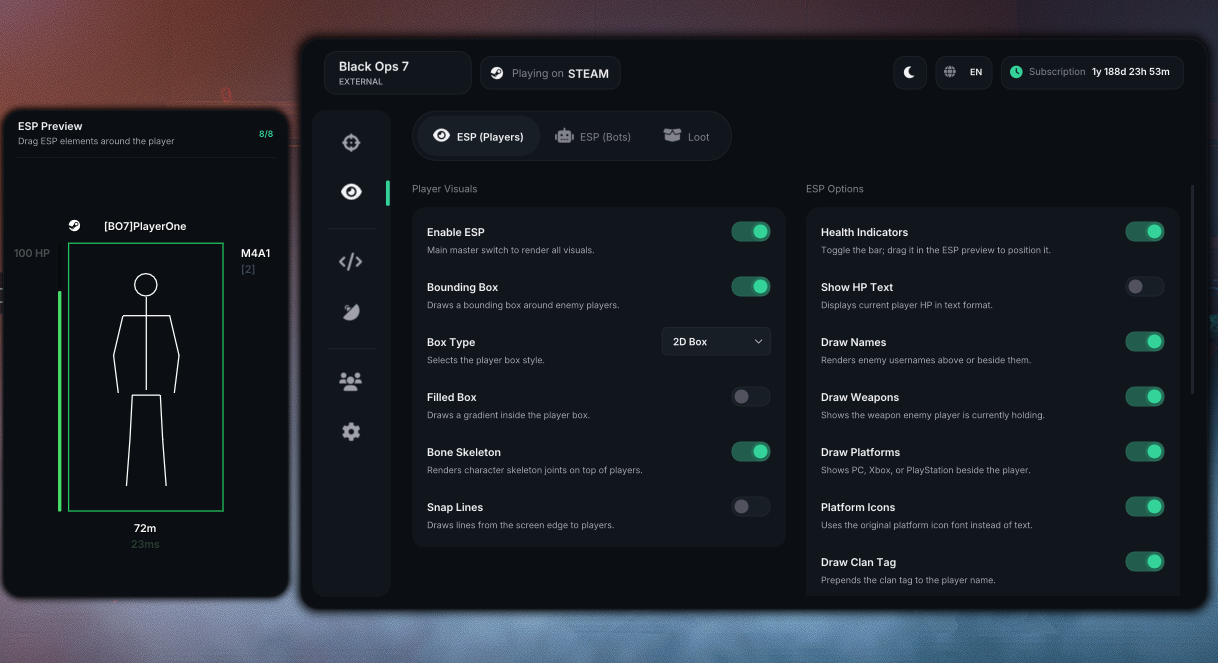
Aimbetter External B07/WZ
Injection
- Download the loader.
- Make sure you are not spoofed.
- Create an account in the loader using your key.
- Select BO7 to load the product.
- Wait for the success message.
- Start the game.
- Go into the WZ / MP menu where you can see the Operator.
Controller Setup
Follow these steps before launching the game.
Initial Setup
- Unplug your controller from your PC.
- Open the Loader and enter your key.
- Select your input mode:
- Xbox Controller
- PlayStation Controller
- Mouse & Keyboard
- Wait until the Loader shows a Success message.
- Launch the game.
- Once you reach the game’s main menu, plug your controller back
in.
Controller Not Working?
If your controller isn’t detected correctly or you experience
duplicate inputs, follow these steps.
HidHide Fix
- Disconnect any external controller adapter or passthrough device so
only your physical controller is connected.
- Open HidHide Configuration Client.
- Go to the Devices tab and find your
controller.
- Remember its name.
- Follow the injection process until you‘re connecting the
controller.
- A second controller with a similar name should
appear.
- Hide the original physical controller by checking
its box in HidHide.
- Leave the newly created virtual controller
visible.
- Restart the game if necessary.
Tip: HidHide shows the exact controller names,
making it easy to identify which one is physical and which one is
virtual.
Verify
Open Gamepad Tester or launch the game.
Only one controller should be detected.
If two controllers are shown, the physical controller has not been
hidden correctly.
Common Error Codes
E2002 / E2003
- Restart your PC.
- Retry with a VPN.
- Make sure Fast Boot is disabled.
E2004 / E2001.xx
- Restart your PC and retry.
- Try again with a VPN if the download fails.
- Make sure you are on an offical windows build.
- Double-check security settings such as defender, hvci, memory
integrity.
- Make sure your connection is stable.
C1104 and all C Error Codes
- Restart your PC first.
- Check VBS and Memory Integrity / Core Isolation.
- Check Windows security settings.
- Make sure no pending Windows restart is required.
N1001 / N1002 / F1101 / B1001 /
S1001
- Check your internet connection.
- Try a VPN or different network.
- Restart the loader and retry.
F1102 / B1002 / S1002 / E1001 /
E1002
- Restart the loader and retry.
- Re-download the latest version if necessary.
- Check whether antivirus/security software is active.
A1001–A1005
- Make sure your login/key is correct.
- Confirm the correct product is activated.
- Do not create multiple accounts on the loader.
- Download and use the latest loader version.
- If your license is rejected, contact support through Discord order
chat.
P1001–P1004
- Close the game before starting the loader.
- Make sure you selected the correct product.
- Check whether the product is under maintenance.
- Restart the loader and retry.
Other / Unknown Errors
- Restart your PC and try again.
- Run the latest loader as Administrator.
- Include the exact error code when messaging the
seller through Discord.
No Overlay Visible
Simple Fix
- Reopen the loader.
- Reinject and try again.
Other Fixes
- Install or reinstall all C++ Redistributables.
- Install or reinstall the latest DirectX drivers.
- Restart your PC after each step.
- Make sure the game is not in Fullscreen Exclusive.
- Disable NVIDIA / AMD Overlay.
- Disable Discord Overlay.
- Disable Xbox Game Bar Overlay.
- Disable any other overlays.
Bluescreens
KERNEL CHECK FAILURE
Cause
- Usually triggered by anti-cheat software running on your PC.
Fixes
- Check for anti-cheat drivers from other games.
- Disable antivirus software.
- Disable Windows Defender.
- Make sure VBS is disabled.
RTCore64.sys Errors
Cause
- Usually triggered by security settings on your PC.
Fixes
- Make sure VBS is disabled
- Ensure Core Isolation and Vulnerable Driver Blocklist are
disabled
- Disable any anti-virus + windows defender software
Loader / Network Error
- Use a VPN, such as ProtonVPN.
- Sync your Date & Time settings.
- Change your DNS settings.
- Try a different network.
- Re-download the file.
- Restart your PC.
Lagging ESP / Visual Lag / Delays
- Turn off Frame Generation in graphics settings.
- Turn off Xbox Game Mode in Windows Settings.
- Lower your in-game graphics settings.
- Fully close or uninstall Wallpaper Engine.
- Disable GPU Hardware Acceleration in supported apps.
- Disable all overlays, including NVIDIA, AMD, Discord, and Xbox.
- Turn off G-SYNC and V-SYNC where possible.
- Enable V-SYNC only in the in-game menu.
- Avoid running high-resource applications.
- Press Ctrl + Shift + Win + B to refresh graphics drivers.