EON Fortnite External
Eon Fortnite External supports Windows 10 until Windows 11 25H2.
ZIP PASSWORD: 123
Dependencies
Download Visual C++ Redistributable Runtimes
- Download the Visual C++ Runtimes package -> Click
Me
- Unzip the downloaded archive.
- Right-click on `install_all.bat` and select
Run as administrator.
- Restart your PC after the installation is
complete.
Download DirectX Runtime
- Download the installer -> Click
Me
- Launch the installer and Uncheck
the option to install the Bing Bar.
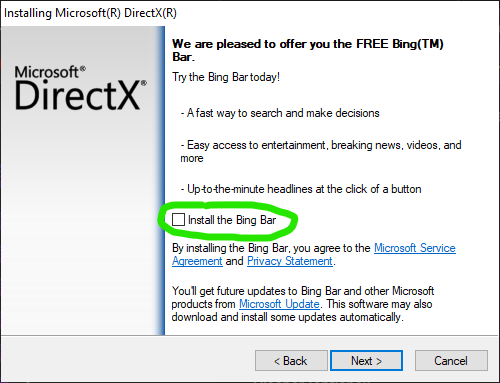
- Click Next and follow the prompts until the
installation is complete.
🧩 SDL3.dll (Controller Support
Fix)
This file resolves the SDL3.dll MessageBox pop-up
that may appear when launching the loader. It is required for proper
controller support.
📥 Download
Download the SDL3.dll file from the link below. -
Click Me
📂 Installation
- Download the SDL3.dll file.
- Locate your Loader folder.
- Place SDL3.dll in the same directory as the
Loader executable.
Example:
Copy
Loader Folder
│
├── Loader.exe
├── SDL3.dll
⚠️ The file must be placed in the same folder as the
loader, otherwise the error will continue to appear.
Loading Cheat
🛠 Installation Steps:
- Run the Loader as Administrator
- Right-click the downloaded loader and select “Run as
Administrator”.
- Log in with Your Credentials
- Enter your license key, then press
Enter.
- Waiting for game
- Wait until you see “Waiting for Fortnite” in the
loader.
- Launch Fortnite
- Open Fortnite
- Once loaded, enjoy your game! 🎮
⚠️ Troubleshooting:
🔹 Loader Crashed or Closed?
🔹 Cheat Not Showing?
- Ensure Fortnite is running
- Restart your PC and repeat the steps.
✅ Following these steps ensures a smooth setup & optimal
performance.
Mouse Driver
🖱️ Fortnite External Mouse
Driver
This driver allows you to use our mouse emulation
method. Follow the steps below to install and configure it
properly.
📦 Download
Download the archive provided below and extract it to a location on
your computer.
3MB Mouse Driver.rarDownloadOpen
The archive contains the required files needed to run the
Mouse Driver.
⚠️ Make sure to extract the archive before starting the
installation.
⚙️ Installation
- Open the extracted archive folder.
- Install Mouse Driver included in the archive.
- Complete the installation process.
💡 The Mouse driver is required for the mouse aim system to function
correctly.
🔄 Restart
After installing Mouse Driver, restart your
computer to ensure the driver loads correctly.
🎮 Fortnite Settings
Once your PC has restarted:
- Launch Fortnite.
- Open Settings.
- Go to Mouse and Keyboard Settings.
- Enable Lock Input Method as Mouse.
This will allow Mouse Aim to function correctly with
the emulator.
ERRORS:
Failed To Load Driver
- Download the required fix: 👉 Use the file or
instructions supplied with your OnlyESP order.
- Once downloaded, run the file as Administrator and
follow the on-screen instructions.
- Your PC will automatically restart after the
process is complete.
- After rebooting, attempt to load the cheat again -
the issue should now be resolved.
💡 This fix addresses common driver load failures caused by missing
permissions or blocked services.
This kick is NOT related to our cheat and is
NOT a HWID ban - no need to worry about your account
status.
What causes this? This is a Fortnite client-side
detection that can be triggered by various system configurations or
third-party software.
Solutions (Try in order):
90% Success Rate:
- Update your GPU drivers to the latest version
- Verify Fortnite files through Epic Games Launcher
- Uninstall 3rd party overlay apps (Medal, Overwolf, RivaTuner,
etc.)
- Play Fortnite legit for 30 minutes, then cheat again
10% Success Rate (Last Resort):
Note: Most users resolve this issue without
reinstalling Windows. Work through the easier fixes first before
considering a full system reinstall.