Anti-Virus
Removing antivirus software will make your system more vulnerable to
malware, viruses, and other threats. Only do this if you have a good
reason (e.g., testing, gaming performance, or using your own security
setup).
Disable or Remove Your
Antivirus
Some antivirus software may prevent our products from running
correctly by blocking files or terminating processes.
Important
We recommend temporarily disabling or uninstalling any third-party
antivirus software while using our software.
Common Antivirus Software
| Microsoft Defender |
Windows |
| Avast / AVG |
Third-party |
| McAfee |
Often pre-installed |
| Norton |
Third-party |
| Bitdefender |
Third-party |
| Kaspersky |
Third-party |
| ESET / Sophos / Trend Micro |
Third-party |
Remove Third-Party Antivirus
- Press Windows + R
- Type
appwiz.cpl
- Locate your antivirus software.
- Click Uninstall.
- Restart your PC.
If the uninstall fails, use the vendor’s official removal tool.
Disable Microsoft Defender
Method 1 (Recommended)
- Open Windows Security.
- Go to Virus & threat protection.
- Select Manage settings.
- Disable:
- Real-time protection
- Cloud-delivered protection (optional)
- Tamper Protection (if available)
STEP 2
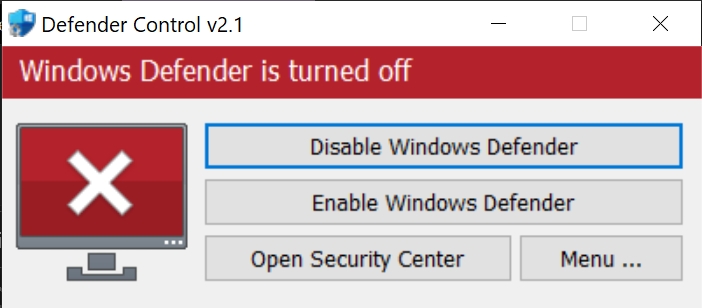
Use Defender Control (DControl) if Windows
automatically enables Defender again.
- Download Defender Control from Sordum.org.
- use WinRAR to extract and the password is: sordum
- Run the application as Administrator.
- Click Disable Windows Defender.
- Restart your PC.
Verify
After restarting:
- No third-party antivirus should be running.
- Windows Security should report Defender as disabled.
- Task Manager should not show antivirus processes.
If antivirus software is still active, repeat the steps above before
continuing.