MSI
Boot up the PC and press [DEL] to open BIOS menu.
Step 1: Disable Secure
Boot in BIOS/UEFI
Once you enter the BIOS/UEFI setup menu, you need to find the Secure
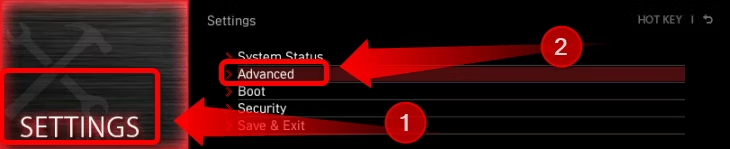
Boot option. On MSI motherboards and laptops, click the “Settings”
button and then click the “Advanced” tab.
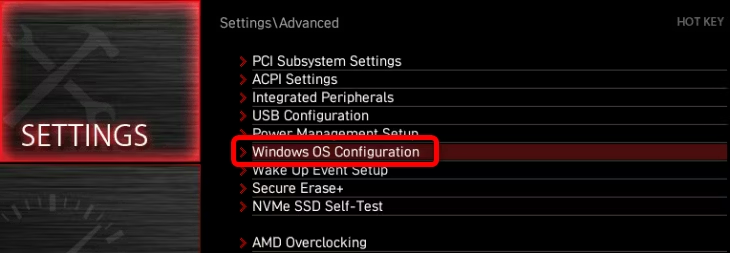
Once there, click the “Windows OS Configuration” tab.
Next, click the “Secure Boot” tab.
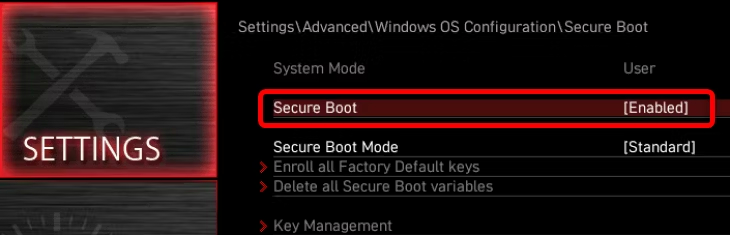
Once you’re inside the “Secure Boot” option menu, you’ll see whether
Secure Boot is enabled or disabled on your machine. If it’s enabled, and
you want to disable it, click the button and select the “Disable”
option.
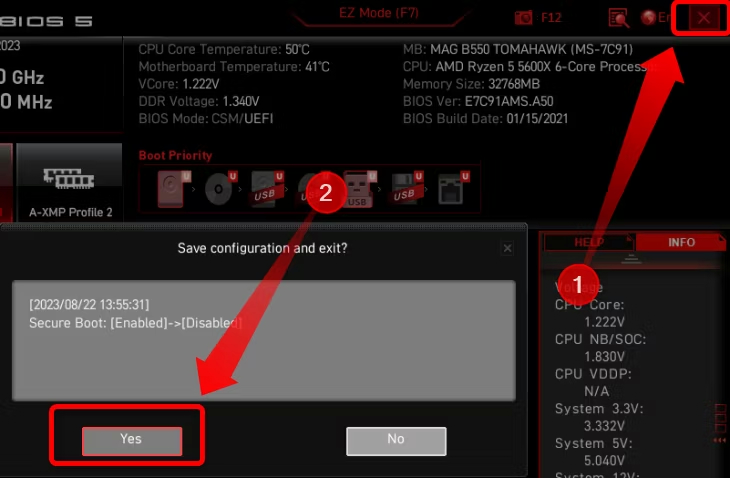
Once you’re done, exit the BIOS setup and make sure to save the
changes you’ve made —in the case of MSI motherboards and laptops, just
hit the “X” button in the upper right corner and save the changes when
prompted.