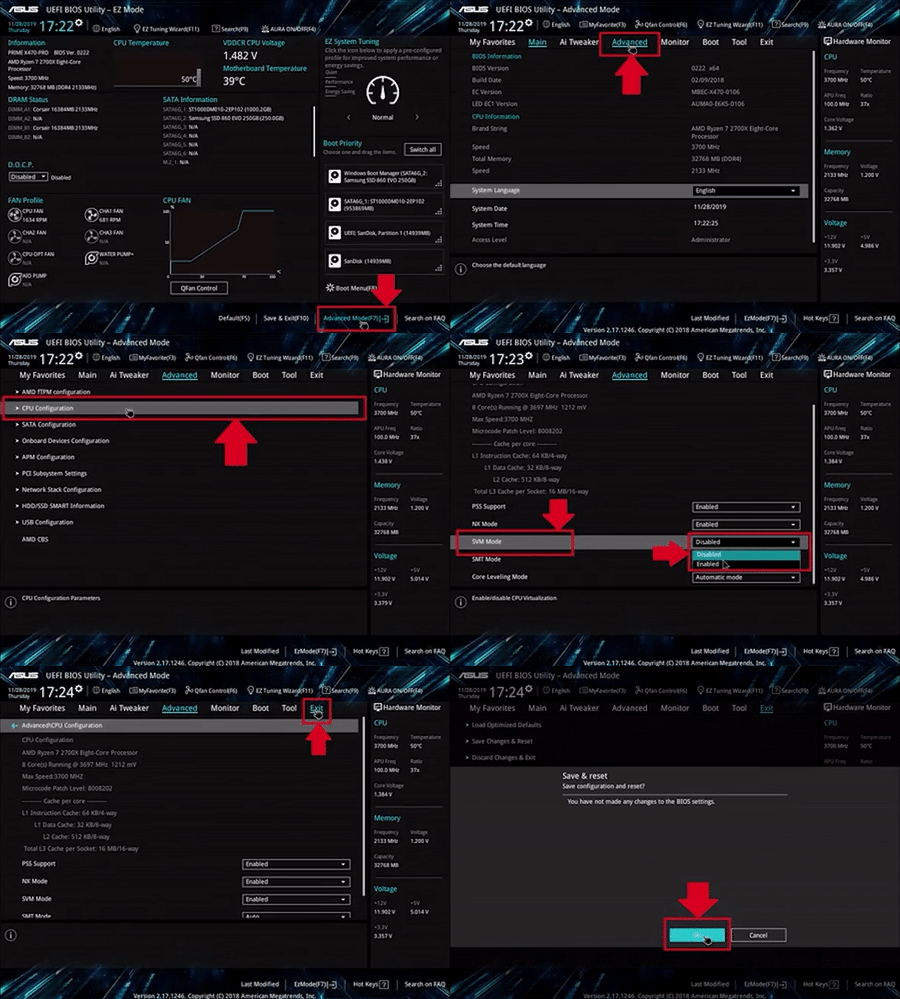
Enable Virtualization
Enable Virtualization
Enable Virtualization
Some products require hardware virtualization to
function correctly. If virtualization is disabled in your BIOS, the
product may fail to initialize or display virtualization-related
errors.
Check if Virtualization is
Enabled
- Press Ctrl + Shift + Esc to open Task
Manager.
- Select the Performance tab.
- Click CPU.
- Verify that Virtualization is listed as
Enabled.
If it already shows Enabled, no further action is
required.
Enable Virtualization in
BIOS
If virtualization is Disabled, you’ll need to enable
it in your motherboard’s BIOS or UEFI settings.
- Restart your PC and enter the BIOS/UEFI setup.
- Common keys: Delete, F2,
F10, or Esc
- Locate the virtualization setting:
- Intel CPUs: Intel Virtualization Technology
(VT-x)
- AMD CPUs: SVM Mode or AMD-V
- Set the option to Enabled.
- Save your changes and exit the BIOS (usually
F10).
Video Guides
If you’re unsure where to find the setting, these guides may
help:
- ASUS: Use the instructions or files supplied
with your OnlyESP order.
- MSI: Use the instructions or files supplied
with your OnlyESP order.
- Gigabyte: Use the instructions or files
supplied with your OnlyESP order.
- ASRock: Use the instructions or files
supplied with your OnlyESP order.
Note
The exact location of the virtualization setting varies between
motherboard manufacturers and BIOS versions. After enabling it, boot
back into Windows and confirm that Task Manager → Performance →
CPU reports Virtualization: Enabled.