Softhub External Division 2
Instructions for
launching the software:
Detailed step-by-step guide:
- After successful payment, you will receive a license key to activate
access to the software and a link to this guide.
- First, you need to prepare to download and run the loader:
- Completely disable Windows Defender (Real-time protection). If you
have other antiviruses installed on your PC, it is recommended to remove
them, as they may prevent the software from running correctly;
- We strongly recommend disabling Windows Defender through the
Defender Control program, you can download it using
this link. Password for the archive - sordum.
- Enter the game without a cheat and set the screen mode to
“Borderless” or “Windowed”, the
software will not work in “Full Screen”.
- Download the loader from the link you received with the key and
instructions.
- Put the loader on a flash drive. The loader can only be launched
from a flash drive.
- Launch the loader as administrator. You need to create a new account
in the loader or log in to an existing SoftHub account.
- After authorization in the account, you can activate the key
(Activate Key) and add a subscription to yourself.
- Next, select the game on the left in the list and click
“Load Cheat”.
- When you see the inscription “Done” in the window
that appears, you can launch the game.
Also, the launch process for some games will be shown in the video
below.
In supported games (Rust, Dayz),
the spoofer is launched automatically when the cheat is launched.
Hot keys:
- F2 - disables and enables the cheat menu.
- DEL - panic key, completely disables the cheat. It is recommended to
press this key before closing the game when you have finished
playing.
- It is not recommended to change the screen mode and screen
resolution after successfully launching the software, as this may lead
to a shift in ESP and other visual elements of the cheat.
How to Use SoftHub Spoofer?
Instructions for using the HWID Spoofer to bypass hardware bans in
games from developer SoftHUB.
Important Preface:
- If you want to use the spoofer with other software (from a different
loader), the spoofer should be launched after the cheat, before starting
the game.
- Download the SoftHUB loader using the link
received after payment.
- Place the loader file on a USB drive or use the OSFMount program to
emulate a flash drive.
- Run the file as Administrator and wait for the
authorization window.
- Log into your SoftHUB profile or register if you haven’t used
products from this developer before.
- After successful authorization, click the Activate
Key button and insert the activation key (received after
payment).
- After activating the key, you will see two products in the list on
the left: Spoofer BE (Battle Eye) and
Spoofer EAC (Easy Anti-Cheat). Choose the
required product based on the game you are going to launch. If you are
unsure of the correct choice, check with a technical support specialist
via the chat widget on our website.
- After selecting the desired option, click the Load
button.
- Wait for all computer data change processes to complete.
- If the process completes successfully, you will receive the
corresponding message: “Product was fully loaded, next start the
game to continue”.
- If you are launching the spoofer with a cheat from another loader or
without a cheat at all, you can proceed to launch the game.
Notes for using the SoftHUB Spoofer:
- To restore all parameters to their original state, simply restart
the computer.
- To run the spoofer with a cheat again, a preliminary computer
restart is also required, as this is a Temporary type spoofer.
- If you have already had a hardware ban, it is strongly recommended
to MANUALLY change the “Computer Name (Hostname)” parameter.
- Press Win + R, type sysdm.cpl, and click OK.
- In the opened “System Properties” window, go to the Computer Name
tab.
- Click the Change button.
- Enter a new computer name in the Computer name field.
- Click OK twice.
- Restart the computer when the system prompts you to do so.
Common problems and
solutions.
Here we have collected popular problems and ways to fix them:
- The most popular problem is the enabled Windows Defender /
Antivirus. Disable Windows Defender completely (as we described earlier)
and uninstall other antivirus software.
- Update Visual C++ libraries, you can download them from
this link.
- You should also update DirectX, you can download it from
this link.
- FaceIt and Riot Vanguard anti-cheats installed on your PC also
interfere with the software. Remove them using “Add or Remove
Programs”.
- If you have problems with launching/injection, then you need to
download this file. Run the file and restart your PC, then
try to run the cheat again. You should also disable kernel isolation and
vulnerable driver blocking in Windows Defender.
- To run the cheat, you must also disable Reputation-based Protection.
- Open the start(windows) menu and search for “Reputation-Based
Protection.” Open this window.
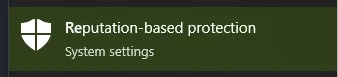
- In the window that opens, disable all options.
- Also, if you have problems with cheat injection or other problems
during the game (ESP lags, etc.), then try switching the screen mode to
“Borderless / Windowed” in the game settings.
Launching without a USB
flash-drive
To run without a flash drive, you need to download and install
“OSFmount” on this
link.
Launch/Demo Video
Dayz (Launch, Gameplay):