Arcane Arma Reforger
How to launch the product via Discord.
IMPORTANT TO READ!
Requirements
before activating the key:
We
remind you that using software is always a risk!
- You purchase the software at your own risk.
- The Undetected status does not guarantee 100% protection from
blocking (with any software, a ban is possible in any game).
- If the update is in the game, wait for the software update.
DISABLE or DELETE
REQUIRED
Preparation for
product activation:
- Download Discord from the official website: Use the file or
instructions supplied with your OnlyESP order.
- Log in to your account or create a new one.
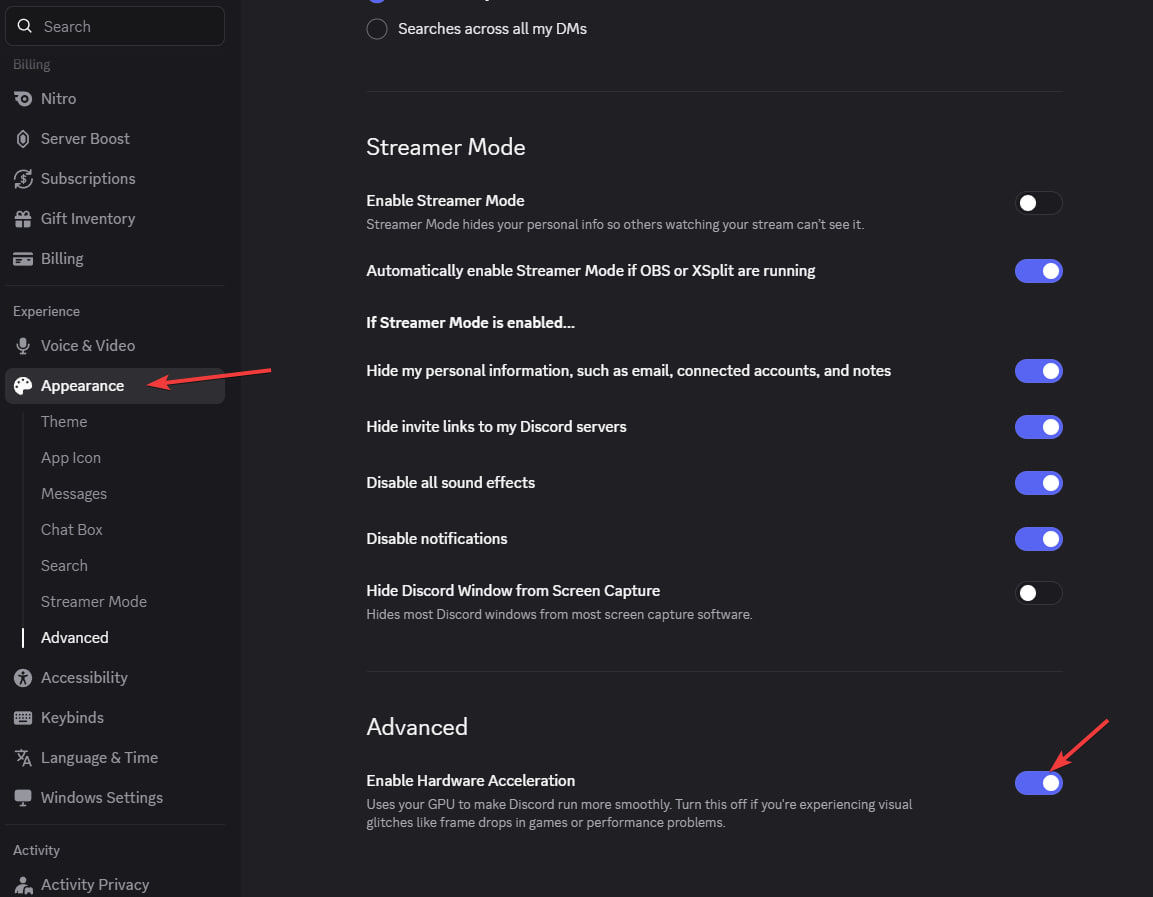
- Enable the “Enable Overlay” option and disable “Enable Legacy
Overlay”.
- Enable Enable Hardware Acceleration option
- Make sure you haven’t disabled the overlay for a specific game.
Start-up instructions: ————————–
- Download the loader from one of the links below. And place it
anywhere (preferably create a separate folder for it)Mirror 1:
Mirror 2: Use the instructions or files supplied with your OnlyESP
order.
- Run the software file as administrator.
- Wait for the loader to update and run a new file.
- Enter your key and press “Enter” (To enter the key into the loader,
after copying it, use the right mouse button in the CMD loader)
- The loader will automatically close after successful loading.
- Launch the game.
- Please do not switch to another window until the menu appears.
- The menu will appear automatically after 1-2 minutes. You can open /
close the menu with the “Home or Insert” key
Errors and their
solutions:
- If you see the error “Please make sure PIN is not set in Windows
sign-in options and manually disable Hyper-V”
- You need to completely disable the password when logging in to
Windows, you can use this guide:
you need to temporarily disable CPU virtualization in the BIOS. - Now
run PowerShell as an administrator and enter the commands below (you can
copy and paste all the commands at once, you don’t have to copy one line
at a time)- Enable CPU virtualization back

Other guide - Related
guide
- “Failed to map memory” error- If you have less than 12 GB of RAM,
request help with your order through Discord.
- Disable all startup programs and restart your PC. If the problem is
not solved:
- Download AutoRuns: *link*- Disable all programs that are specified in
this path (CurrentVersion)
- Loader closed without errors:- Set this:
- There is a menu in the game, but you cannot interact with it- Run
the overlay as administrator according to the instructions above.
- Error “Make sure all antiviruses are disabled” Windows 10:-
Uninstall all third-party antiviruses
- Disable real-time protection- Disable SmartScreen
- Error “Make sure all antiviruses are disabled” Windows 11:- Download
both files:
- Run the Turn_ON, agree to the changes in the registry, restart the PC-
Then start the Turn_OFF, agree to the changes in the registry, restart
the PC- If this does not help, check that you have uninstalled the
antivirus, also disabled real-time protection
- Other errors caused by loader:- Send a screenshot of the error to
the support on the website (bottom right corner), download Anydesk and
also send it to the support chat.
- You see the menu, but it’s not clickable:- Run Steam NOT as
administrator
- Disable all third-party overlays (leave only Nvidia or AMD depending
on your graphics card)
- The menu disappears in the game or there is a menu, but the visual
features do not work:- If there was a patch in the game, wait for a
product
update- Check the integrity of the game files, but it is best to perform
a full reinstall- If none of the solutions helped you, contact support
through Discord
- The menu in the game is not clickable / does not open the first
time:- Launch Steam WITHOUT admin rights (in case you play through
Steam).
- Disable the EA App overlay in the app settings (in case you’re playing
through the EA App).
- AES instruction set is not supported:
- This error means that the processor does not support the AES
instruction set, so it cannot be fixed. request help with your order
through Discord.
- Please enable Intel VT-X in the BIOS:
- To fix this error, enter the BIOS and look for a feature called “Intel
virtualization technology” or “Intel VT-X” and enable it.
- Please enable AMD-V in BIOS:
- To fix this error, enter the BIOS and look for a feature called
“AMD-V” or “SVM mode” and enable it.
- Please disable secure boot in the BIOS:
- To fix this error, enter the BIOS and disable the secure boot
feature.
- Unsupported firmware:
To fix this error, convert the operating system disk to GPT format using
the built-in Windows mbr2gpt tool or any other disk management utility
of your choice.
- Secure boot keys are incorrect and need to be enrolled:
To fix this error, enter BIOS and enable Secure Boot, save the settings,
make sure you enable it correctly by opening PowerShell and typing
“Confirm-SecureBootUEFI”, if the result is “True”, you can restart the
computer, then enter the BIOS and disable Secure Boot.
- VMX/SVM is not supported:
To fix this error, go to Control Panel -> Programs & Features
-> Turn Windows Features On or Off and make sure Virtual Machine
Platform and Hyper-V are disabled. If the error persists, open cmd as an
administrator and type the following command without quotes “bcdedit
/set hypervisorlaunchtype off”, then press Enter and restart your
computer.
- Incorrect hwid
- Open cmd as administrator, type the following commandsalternately wmic
diskdrive get Caption, SerialNumber
wmic baseboard get SerialNumber
If none of these commands are executed with an error, then something is
wrong with your PC, try reinstalling Windows and check if the problem is
gone.
- If you encounter any other problems, please contact support through
Discord