Infinite COD Spoofer
Infinite Temp HWID Spoofer
Guide
Setup Guide For All Infinite Temp Spoofer Products
- Disable
Real-Time Protection & Antivirus Software
- Disable
Memory Integrity
- Use the file or instructions supplied with your OnlyESP
order.
- Disable Hyper-V
- Open loader and put key in you got from website
- click the call of duty logo
- press launch button in top left
- It should say Running if so can close loader and start game!
NOTE: FREE TRIAL IS FOR 40mins Can’t change
seed.
RESETS / INFO
You can only use the key once so if you get error or the loader bugs
you need to send loader id / #inf and the key in tickets to get your sub
loaded onto new loader
UNIQUE ID EXAMPLE:

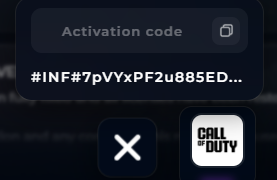
you will need the #INF key/ID if you need hwid reset for new loader /
don’t redownload keep using the same loader this will help so many
problems
Hypervisor / Failed to
load hypervisor
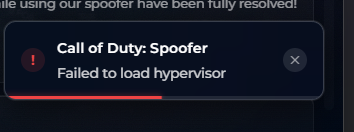
Use this if you get “Failed to load hypervisor” on the loader.
- BIOS — Enable SVM (AMD)
- Restart PC and enter BIOS (usually Del, F2, or F10).
- Find SVM Mode (may be under Advanced > CPU Configuration).
- Set SVM Mode to Enabled or Auto (was Off before).
- If you see SVM Lock, set it to Off.
- Save and exit (F10).
- Windows — Turn off Hyper-V launcher
Open Command Prompt as Administrator.
Run:
bcdedit /set hypervisorlaunchtype off
Reboot when done.
Windows — Uninstall recent security update (test only)
Settings > Windows Update > Update history > Uninstall
updates
Uninstall KB5089549 (May 2026 security update).
Reboot when prompted.
Optional: Pause updates so Windows does not reinstall it right
away.
Only uninstall KB5089549 for testing. Put it back later via Windows
Update.
Run the loader
- Right-click the loader > Run as administrator.
- Try loading the spoofer again.
Quick checklist
SVM Mode -> Enabled / Auto SVM Lock -> Off (if present)
Hypervisor launch type -> off (bcdedit) Security update ->
KB5089549 uninstalled (test) Loader -> Run as administrator
If
your loader ID keeps changing every time you open the loader or restart
your PC, try this fix:
- Press Win + R, type regedit, and press Enter.
- Navigate to:
HKEY_LOCAL_MACHINE\SYSTEM\HardwareConfig
- Delete the “LastConfig” registry key.
- Restart your PC.
After rebooting, launch the loader again and check if the ID remains
the same.
Infinite
Desktop Flashing / EXE Not Opening Fix:
If Infinite is causing desktop flashing, or you are unable to open
files or EXEs:
- Open the loader.
- Open Windows Settings.
- Go to System → Storage → Temporary Files.
- Remove temporary files.
This may help resolve the issue, but results can vary depending on
your system.
Infinite
Spoofer – Possible Fix for Persistent Issues:
If you’re having problems with Infinite Spoofer and nothing seems to
fix it, even after trying all common solutions, you can try the
following.
Tested by Exotic and his mate: They found that a system which
appeared to be permanently spoofed was experiencing masking instability,
apps failing to open, and game launch issues. After performing the steps
below, the problems were resolved.
Recommended steps:
- Fresh install of Windows 11 24H2 Pro (or a lower supported
version),
- Clear TPM from BIOS,
- Update your BIOS to the latest version and flash it twice,
- Uninstall recent Windows Security updates if the issue started after
an update,
This reportedly fixed:
- Unstable masking behavior,
- Applications not opening,
- Games failing to launch,
- General system instability,
This is not an official fix and may not work for everyone, but it’s
worth trying if you’ve exhausted all other options