Ancient WARDOGS
⚠️ IMPORTANT —
BEFORE CHANGING BIOS SETTINGS
Before changing TPM, Secure Boot, Virtualization, UEFI or
other BIOS settings:
• Make sure you know your Windows account
password
• Save your BitLocker Recovery Key if BitLocker / Device
Encryption is enabled
• Do not rely only on your Windows PIN
Changing certain BIOS/security settings can cause Windows Hello PIN
verification to require recovery. Guide
here
1. PC Setup
- Disable
Real-Time Protection & Antivirus Software
- Disable Exploit Protection (Google How To Do This)
- Disable
HyperV
- Enable
Virtualization
- Disable
Memory Integrity
- Disable Other
Anti Cheats
- Disable Overlays:
- Turn off all overlays (Discord, GeForce, Medal, Radeon, etc.).
- Disable Any 3rd Party Firewalls (Only have on the one you
need)
- Disable
Vulnerable Driver Blocklist
- Sync
Date & Time
Game Display Mode
Set the game to:
Fullscreen Borderless / Borderless Windowed
2. Overlay Setup
Important
If one supported overlay is buggy, try another supported overlay.
Avoid running several overlays at the same time unless required.
Medal
Medal does not support exclusive fullscreen mode for
this setup.
Download:
https://medal.tv/download
Russia: Medal may require a VPN to
access/register.
Install Medal, create an account and enable the required overlay.
Discord
For support, open a ticket in our Discord.
Go to:
Discord → Settings → Game Overlay
Make sure:
• Game Overlay is enabled
• Legacy Overlay is disabled
• Hardware Acceleration is enabled
If Discord shows:
“No suitable overlay”
Turn the overlay OFF, then turn it
ON again.
3. Loader
Loader - Use the
instructions or files supplied with your OnlyESP order.
Launching
1. Launch the loader
2. Enter your license key
3. Start the product
4. Wait for the loader to close
Once it has closed normally, launch the game.
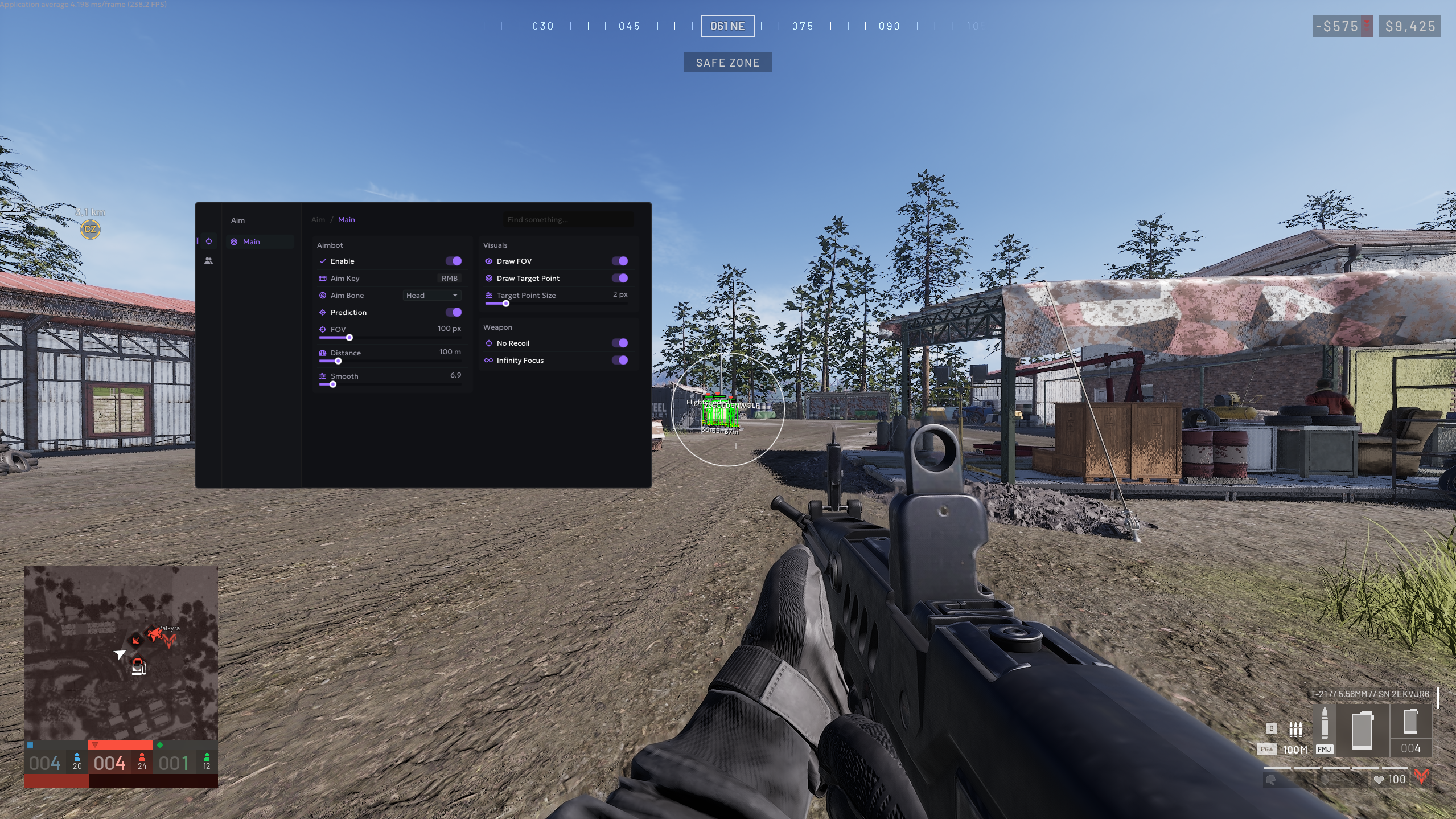
Open / Close Menu: INSERT
Some builds may also support:
HOME
4. System
Requirements
CPU
AES instruction-set support
BIOS
SVM / AMD-V or Intel VT-X
RAM
16 GB recommended / required by the product
CPU Support
Intel + AMD
Windows
Windows 10 / Windows 11
Supported builds listed by the provider:
1809 — 24H2
FAQ / FIXES / ERRORS
Error:
Please launch SteelSeries Moment Overlay (FOR GEFORCE)
Solution
Disable and then re-enable the GeForce overlay.
Error:
Please launch SteelSeries Sonar Overlay (FOR STEELSERIES)
Solution
Press the configured Sonar bind before launching so
the overlay is active.
Solution
Open:
SteelSeries → Settings → Moments → Capture and
Sound
Turn OFF:
Allow Moments to Capture While Gaming
Error:
Please Disable Intel Rapid Storage Technology
Solution
Intel RST may conflict with the software.
Microsoft discussion / information:
https://answers.microsoft.com/en-us/windows/forum/all/uninstalling-the-intelr-rapid-storage-technology/e3c4b6d6-56ba-4ac5-be50-89843c9d9b22
⚠️ Do not change RAID/RST storage settings in BIOS without
checking how Windows was installed first. Incorrectly changing the
storage controller can prevent Windows from booting.
Solution
Restart the application and try again.
If the issue continues, try running the required overlay as
Administrator.
Solution
Install the latest Microsoft Visual C++ x64
Runtime:
https://aka.ms/vs/17/release/vc_redist.x64.exe
Restart the PC after installation and try again.
Error: Unsupported
Firmware
Solution
Check that Windows is using:
• GPT disk partitioning
• UEFI boot mode
You can check this before changing anything by opening:
System Information → BIOS Mode
It should normally show:
UEFI
Error: 0x296
Solution
Restart the application and try loading again.
Error: Unknown Network
Error
Solution
Check your internet connection.
Try:
• Restarting your router
• Testing without a VPN
• Checking whether the service is reachable
• Checking Windows date/time
Error:
Failed to Allocate Memory / Failed to Map Memory
Solution
Restart the PC and try again.
If the problem continues:
• Check recently installed software
• Check startup applications
• Remove software you no longer use
Microsoft Autoruns can help inspect startup entries:
https://learn.microsoft.com/en-us/sysinternals/downloads/autoruns
⚠️ Do not randomly disable Microsoft/Windows drivers or
services.
Error: Failed to Load
Dependencies
Solution
Check that:
• Required runtimes are installed
• The application files are complete
• The application is not corrupted
• Required files have not been quarantined
If files are unexpectedly being removed, check the security
software’s history before taking further action.
Error: AES
Instruction Set Is Not Supported
Solution
Your processor does not support the required AES CPU
instruction set.
This cannot normally be enabled through software.
A supported CPU is required.
Error:
Please Enable Intel VT-X / AMD-V in BIOS
Solution
Enter your BIOS and look for:
Intel
Intel Virtualization Technology
or
Intel VT-X
AMD
SVM Mode
or
AMD-V
Set the option to:
Enabled
Save changes and restart the PC.
Error: VMX / SVM Is Not
Supported
- Solution: To fix this error, go to “Control Panel” -> “Programs
and Functions” -> “Enable or disable Windows Functions” and make sure
that “Virtual Machine Platform” and “Hyper-V” are disabled.
If the error persists, open cmd as an administrator and enter the
following command without quotes “bcdedit /set hypervisorlaunchtype
off”, then press Enter and restart the computer.
If the Windows 11 user and the previous methods did not help him,
then you should run PowerShell as an administrator and paste the
following command there (in full):
takeown /F “C:64.exe”
icacls “C:64.exe” /grant *$((\[System.Security.Principal.WindowsIdentity]::GetCurrent()).User.Value):For*\
*takeown /F "C:\Windows\System32\hvax64.exe"*\ *icacls
"C:\Windows\System32\hvax64.exe" /grant
\*$(([System.Security.Principal.WindowsIdentity]::GetCurrent()).User.Value):F
del “C:64.exe”
del “C:64.exe”
Error: Virtual or
RAID Disk Is Present
Solution
Check your storage configuration before making changes.
⚠️ Do not simply turn RAID off in BIOS.
If Windows was installed using RAID/RST mode, changing it directly
can cause an INACCESSIBLE_BOOT_DEVICE error and stop
Windows from booting.
Error: Unsupported
Firmware
Solution
The operating-system disk may need:
GPT partitioning + UEFI boot
Windows includes the MBR2GPT utility for supported
installations.
Back up important files before changing disk or firmware
configuration.
Error:
CRD Failed at XXX / Failed to Init Render
Desktop PC
The graphics card may be unsupported or the graphics driver may need
updating.
Laptop
Hybrid/integrated graphics can sometimes cause rendering
conflicts.
Try:
• Updating GPU drivers
• Setting the dedicated GPU as the preferred GPU in
Windows/NVIDIA/AMD settings
• Using Borderless Windowed mode
Avoid disabling the integrated GPU in BIOS unless you know the laptop
supports running entirely from the dedicated GPU.
Error: Incorrect
HWID
Solution
Open Command Prompt as Administrator and check that
Windows can correctly read your hardware information.
Disk information:
wmic diskdrive get Caption, SerialNumber
Motherboard information:
wmic baseboard get SerialNumber
If either command fails, first check Windows/WMI health rather than
immediately reinstalling Windows.
Useful Downloads /
Guides
📘 Product Guides
Use the instructions or files supplied with your OnlyESP
order.
🎥 Medal
https://medal.tv/download
📦 Microsoft Visual C++
x64
https://aka.ms/vs/17/release/vc_redist.x64.exe
🛠️ Microsoft Autoruns
https://learn.microsoft.com/en-us/sysinternals/downloads/autoruns
Open / Close
INSERT / HOME