RED: Full Internal
Step 1 — Preparing Your
Computer
Setup:
- Disable
Real-Time Protection & Antivirus Software
- Disable
Hyper-V
- Enable
Virtualization
- Disable
Memory Integrity
- Disable Other
Anti Cheats
- Disable Overlays:
- Turn off all overlays (Discord, GeForce, Medal, Radeon, etc.).
- Disable Any 3rd Party Firewalls
- Disable
Vulnerable Driver Blocklist
- Disable VBS / Virtualization
Based Security
- Sync
Date & Time
- Make sure the following are installed on your system:
- Run as admin and follow loader instructions!
Open/Close Menu = INS or Home
Step 2 — Game Graphics Settings
- Launch the game once without the cheat
- Go to Graphics Settings
- Set everything to Low
- Close the game completely
Low graphics settings improve stability and reduce the chance of
crashes or freezes during injection.
✅ All done. You’re ready to launch the loader.
Follow the product-specific launch guide below.
Launching the Product
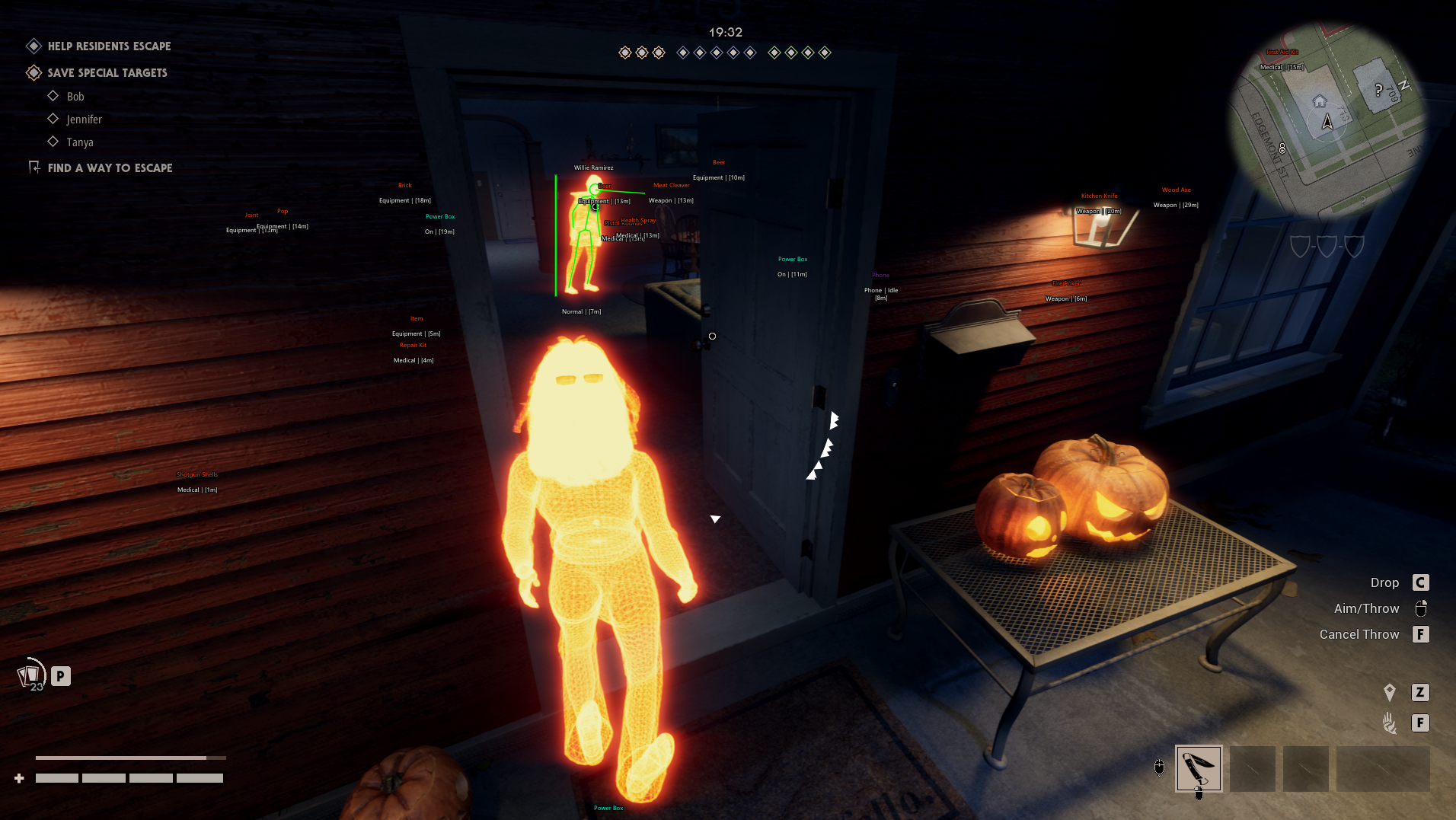
🚀 Halloween — Launching the
Cheat
Make sure you’ve completed Preparing Your PC before continuing.
Important: Make sure the game and launcher
are fully closed before launching the loader.
Steps
- Download and run the loader → Use the file or
instructions supplied with your OnlyESP order.
- Enter your license key
- Wait for the message: “Please Launch Halloween
And Press F2 In Main Menu”
- Launch Halloween
- Once you’re in the lobby, press F2
and wait 10–20 seconds
Controls
ActionKey
Open / Close menu
Insert
Inject in lobby
F2
Enjoy your game.
Error Fix
Instant Crash on Game Launch
- Install the latest GPU drivers: NVIDIA ·
AMD
- Open System → Display → Graphics and disable the
following:
- Hardware-accelerated GPU scheduling
- Variable refresh rate
- Optimizations for windowed games
- Run CMD as Administrator and paste this
command:
Copy
reg add "HKLM\SOFTWARE\Microsoft\Windows\Dwm" /v OverlayTestMode /t REG_DWORD /d 5 /f
- Disable Virtualization in your BIOS settings.
- Restart your PC.
- Try injecting again.
Driver Error 1, 2
To fix these driver initialization errors, you need to disable
conflicting security features and anti-cheats:
- Disable HVCI (Memory Integrity).
- Disable Microsoft Vulnerable Driver Blocklist.
- Disable Windows Defender using dControl (Defender
Control).
- Delete Riot Vanguard and FACEIT
AC.
For support, open a ticket in our Discord.
Can’t Handle Driver
If you encounter this error during injection:
- Go to Windows Security settings and set all Exploit
Protection settings to Default.
- Press F2 and check what message appears in the
loader.
- If it says
"Initialize Complete", proceed to the next
step.
- If you see an error message, please contact support through Discord
order chat.
- Turn off all background overlays from other
programs (such as NVIDIA GeForce Experience, Discord, AMD Adrenalin,
etc.).
- Connect to a VPN and try again.
BSOD After F2
If your PC crashes with a Blue Screen of Death after pressing F2, you
need to disable KPTI.
Run CMD as Administrator and paste the following
commands one by one:
Copy
reg add "HKLM\SYSTEM\CurrentControlSet\Control\Session Manager\Memory Management" /v FeatureSettingsOverride /t REG_DWORD /d 3 /f
Copy
reg add "HKLM\SYSTEM\CurrentControlSet\Control\Session Manager\Memory Management" /v FeatureSettingsOverrideMask /t REG_DWORD /d 3 /f
Restart your PC after applying these registry changes before
attempting to inject again.
Failed initialization
API
Enable VPN before opening loader
Key detail for customers: FACEIT and third party
antivirus must be deleted, not disabled. Disabling is
not enough — their kernel drivers stay loaded and block ours.